
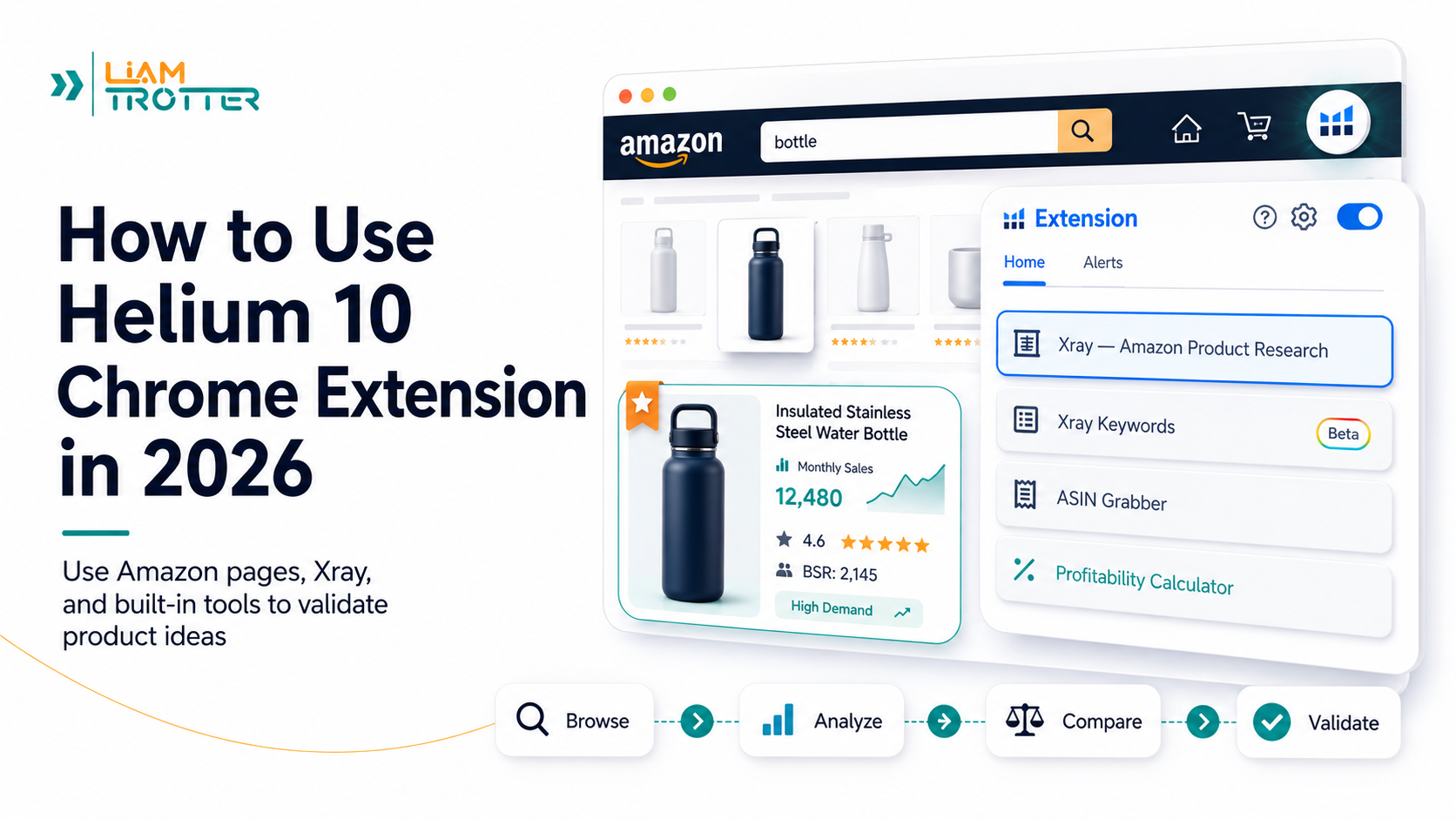

The Helium 10 Chrome Extension can be useful for Amazon product research, but only if you use it the right way.
The mistake many beginners make is treating the extension like a product decision tool. They open Amazon, run Xray, see a high revenue number, and assume they have found a product worth selling.
That is not how you should use it.
A better way to think about the Helium 10 Chrome Extension is this: it helps you check what is happening on Amazon right now. You can use it to analyze search results, compare competitors, review estimated sales, check fees, study customer feedback, and decide whether a product idea deserves more research.
Your goal is not to choose a product from one metric. Your goal is to validate the idea before you spend money on inventory.
In this guide, you will learn how to use the Helium 10 Chrome Extension as part of a practical Amazon FBA product research workflow.
Quick Answer: What Is the Helium 10 Chrome Extension?
The Helium 10 Chrome Extension is a browser extension that adds product research tools directly to Amazon pages. Instead of leaving Amazon to check every metric inside a separate dashboard, you can use the extension while browsing Amazon search results and product pages.
Its most important tool for product research is Xray. Xray helps you review estimated sales, revenue, price, reviews, Best Sellers Rank, FBA fees, active sellers, fulfillment type, recent purchases, parent-level sales, ASIN-level sales, and other competitor data.
The extension also includes tools such as Xray Keywords, ASIN Grabber, Profitability Calculator, Review Insights, Sales Estimator, Inventory Levels, and other features depending on your account, plan, marketplace, and the page you are viewing.
For Amazon FBA beginners, the Chrome Extension is best used after you already have a product idea or niche to check. It helps you inspect the live Amazon marketplace before deciding whether to reject the idea, research it further, or add it to a shortlist.
Helium 10 Chrome Extension at a Glance
Use this quick overview before going deeper into the tutorial. The Helium 10 Chrome Extension is best used to analyze Amazon search results and product pages after you already have a product idea, keyword, or niche to validate.
| Question | Quick Answer | Why It Matters |
|---|---|---|
| What is it? | The Helium 10 Chrome Extension is a browser extension that adds Amazon product research tools to Amazon pages. | It helps you analyze search results and product pages without leaving Amazon. |
| Main tool | Xray is the main tool inside the extension for Amazon product research. | Helium 10 Xray helps you compare estimated sales, revenue, reviews, BSR, price, FBA fees, sellers, and other competitor signals. |
| Best use | Use it after you already have a product idea, keyword, or niche to check. | The extension is strongest for validation, not for choosing a product from one number. |
| Where to install it | Install it from the official Helium 10 page or the Chrome Web Store listing. | This helps avoid unofficial downloads and supports searches around Helium 10 Chrome Extension download or install. |
| Important tools | Xray, Product Summary, Profitability Calculator, Review Insights, Xray Keywords, and ASIN Grabber. | These tools help you check competitors, profitability, reviews, keywords, and product-level data. |
| Next step | Use the extension as part of a full Amazon FBA product research process. | You still need to check demand, competition, fees, suppliers, restrictions, reviews, and differentiation before buying inventory. |
What Is the Helium 10 Chrome Extension Used For on Amazon?
The Helium 10 Chrome Extension is mainly used to analyze Amazon search results and product pages while browsing. For Amazon product research, it can help you:
- Analyze Amazon search results with Xray.
- Compare estimated sales, revenue, price, reviews, and BSR across competitors.
- Check product page data such as revenue, rating, listing health, top keywords, FBA fees, seller count, and variations.
- Estimate profitability using the Profitability Calculator.
- Study customer complaints and positive feedback with Review Insights.
- Collect ASINs for deeper competitor or keyword research.
- Review keyword context with Xray Keywords.
- Identify risks such as high review counts, weak margins, variation complexity, missing data, or unclear demand.
It does not replace manual judgment. The extension can speed up research, but it cannot tell you with certainty that a product is profitable, easy to rank, or safe to buy.
How to Download and Install the Helium 10 Chrome Extension from the Chrome Web Store
The safest way to download and install the Helium 10 Chrome Extension is through the official Helium 10 extension page or the official Chrome Web Store listing. Avoid unofficial download pages, outdated files, or browser add-ons that do not clearly come from Helium 10.
You should install it from a desktop Google Chrome browser. Chrome on mobile does not work like desktop Chrome for extensions, so use a computer when installing and using the tool.
Use the Official Helium 10 Page or Chrome Web Store
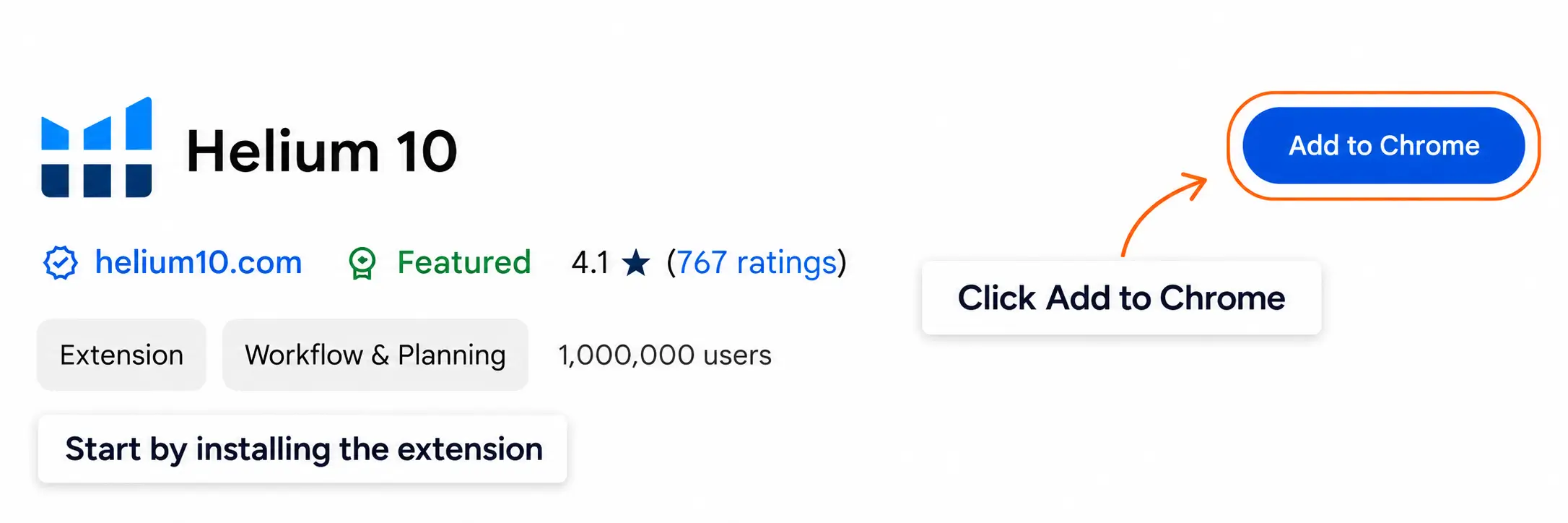
To avoid installing the wrong browser add-on, start from the official Helium 10 Chrome Web Store listing or the official Helium 10 download page. This helps you avoid unofficial download pages or outdated extension files.
Once you find the official extension page, click Add to Chrome.
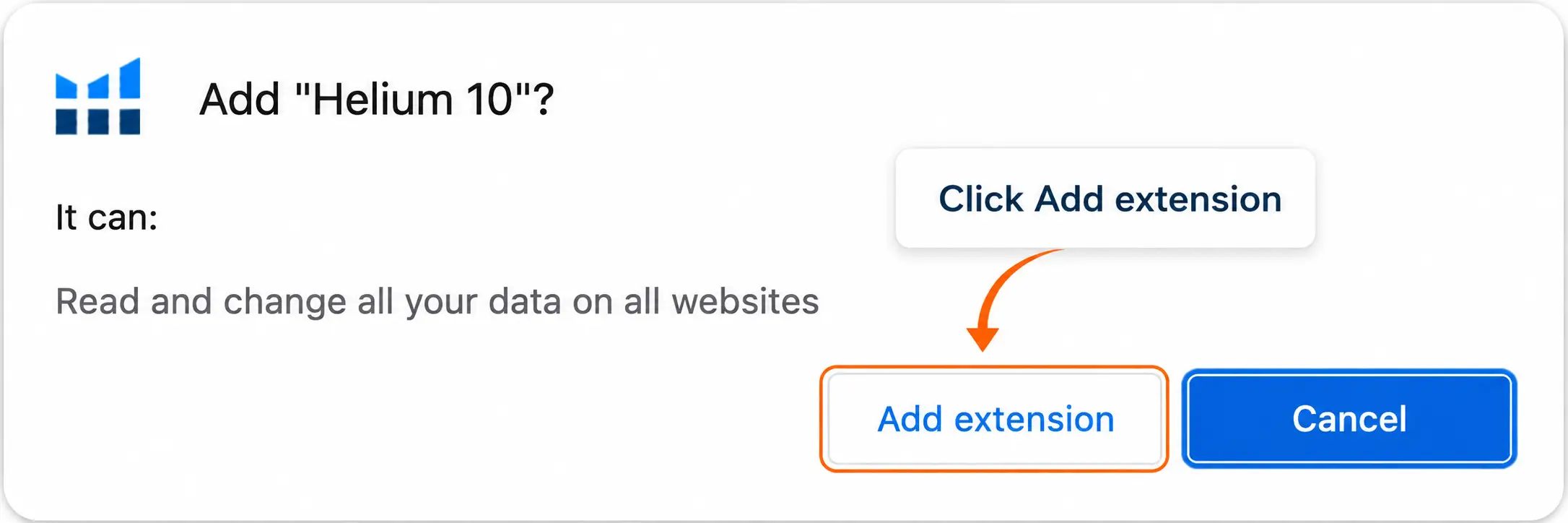
Confirm Add Extension
Chrome will ask you to confirm the installation. Click Add extension to finish adding the Helium 10 Chrome Extension to your browser.
Sign In and Open Amazon
After installing the extension, pin it to your Chrome toolbar if needed. Then sign in to your Helium 10 account, open Amazon, and search for a product idea or keyword you want to analyze.
If you are not logged in, some tools may not appear or may not work as expected. If you use Helium 10 through a team account or subuser profile, make sure you are connected to the correct account with the right permissions.
Tools Inside the Helium 10 Chrome Extension
The tools available inside the Chrome Extension can vary depending on the Amazon page you are viewing. On search results pages, you may see tools such as Xray and ASIN Grabber. On product pages, more tools may become available, such as Product Summary, Profitability Calculator, Review Insights, and other product-level data.
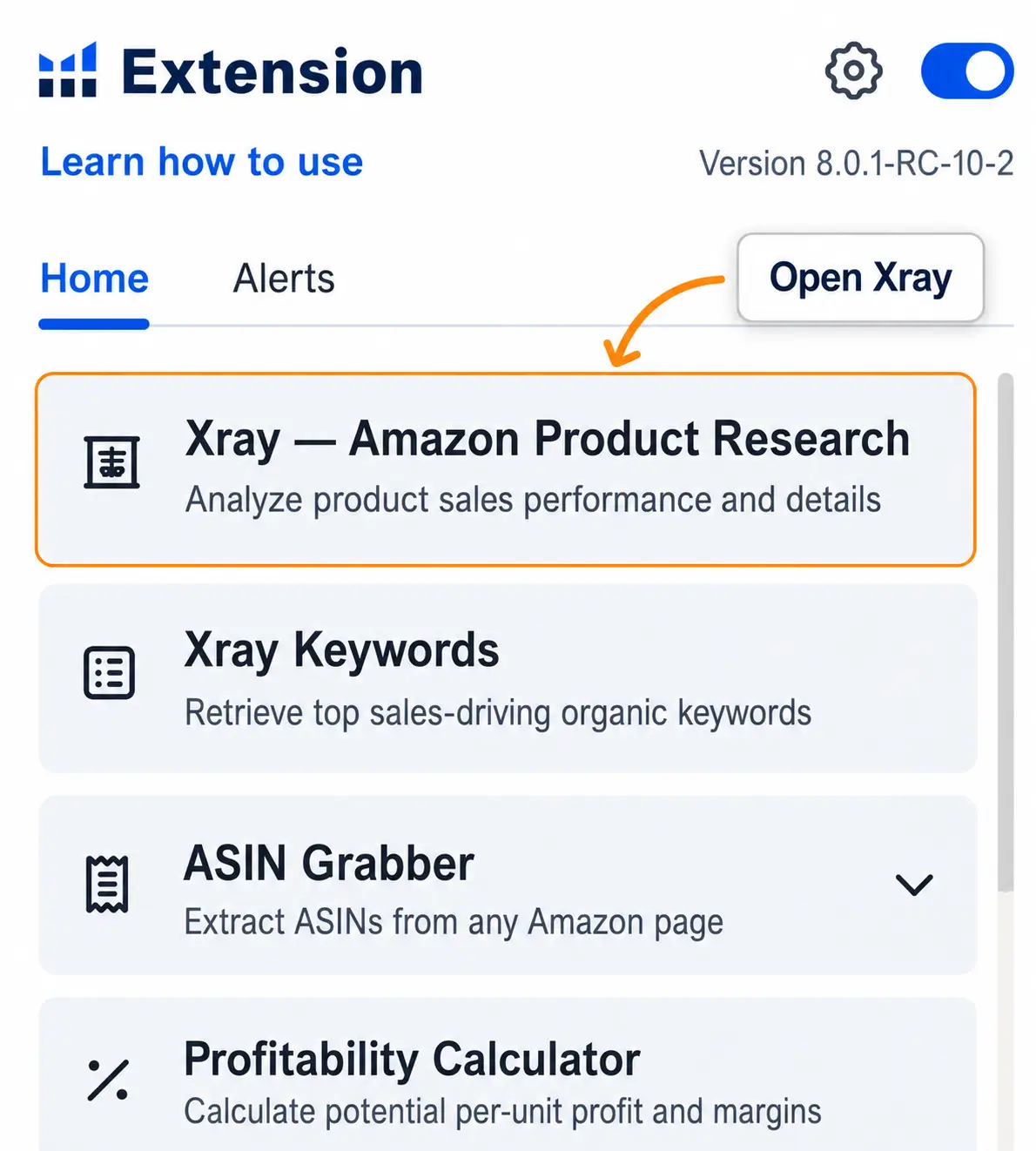
You do not need to master every tool on day one. For a beginner product research workflow, focus on Xray, Product Summary, Profitability Calculator, and Review Insights first. The other tools can support deeper research once you understand the market.
Helium 10 Chrome Extension vs Helium 10 Black Box
The Chrome Extension and Black Box are often used in the same product research workflow, but they are not the same tool.
Helium 10 Black Box is better for finding product ideas inside a database using filters. The Chrome Extension is better for checking what those ideas look like directly on Amazon.
For a broader workflow, start with a clear product research process, use Black Box to find possible ideas, and then use the Chrome Extension to validate competitors and live Amazon data.
How the Chrome Extension Fits Into Amazon FBA Product Research
The Chrome Extension is most useful after you already have a product idea, keyword, or niche to check.
A simple workflow looks like this:
Find an idea → Search Amazon → Run Xray → Compare competitors → Check trends → Review Product Summary → Estimate profitability → Read reviews → Watch variations → Reject, research more, or shortlist
This workflow keeps you from making a decision too early. Xray may show demand, but demand alone is not enough. You still need to understand competition, reviews, fees, variation structure, and whether you can realistically improve or differentiate the product.
How to Use Helium 10 Xray in the Chrome Extension for Product Research
Helium 10 Xray is the main product research tool inside the Helium 10 Chrome Extension. It helps you analyze Amazon search results and product pages without leaving the browser, so you can compare competitors, demand signals, reviews, fees, pricing, and sales estimates before shortlisting a product idea.
Run Xray on an Amazon Search Results Page
Start by searching Amazon for a product idea or keyword. Then click the Helium 10 Chrome Extension icon and choose Xray — Amazon Product Research.
Xray will open a window with product data from the results page. Use this view to understand the market as a group, not just one product.
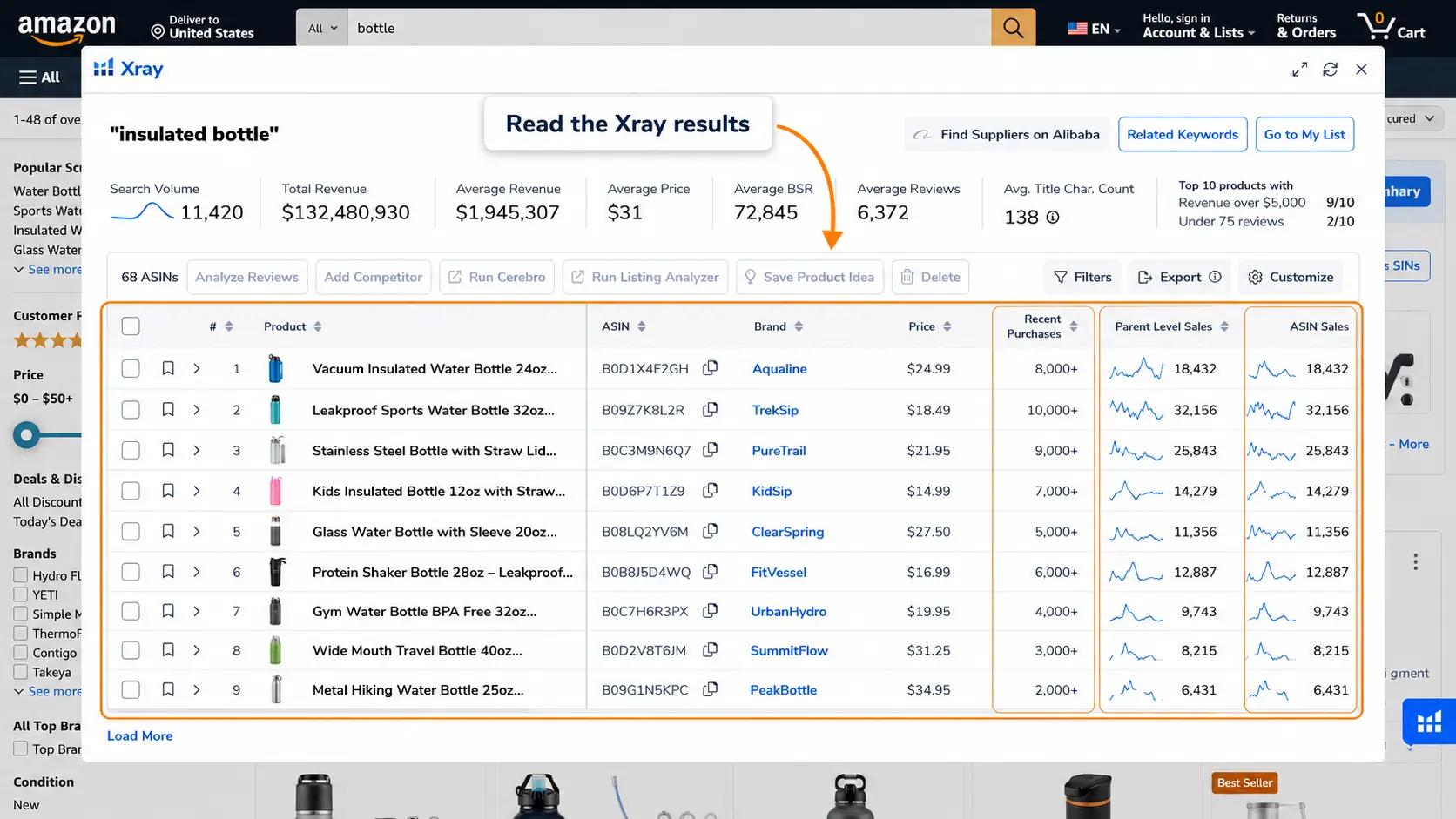
In the current Xray interface, you may see top-line metrics, product rows, filters, sales data, revenue estimates, review data, recent purchases, parent-level sales, ASIN-level sales, and other competitor signals. Because interfaces change over time, focus less on memorizing every button and more on understanding what the data is telling you.
Select, Remove, or Save Products for Deeper Research
Before reading the averages too seriously, look at the products included in the Xray results. Sometimes Amazon search results mix different product types, sponsored products, bundles, accessories, or irrelevant items.
If unrelated products are included, your averages can become misleading. Remove or ignore products that do not match the product type you are actually researching.

You can also save product ideas or send selected ASINs into deeper keyword research workflows. For beginners, the most important habit is simple: remove obvious mismatches before trusting the summary numbers.
Filter Results Without Overfiltering
Xray filters can help you narrow the results by price, estimated sales, estimated revenue, reviews, ratings, active sellers, FBA fees, fulfillment type, weight, and title keywords.
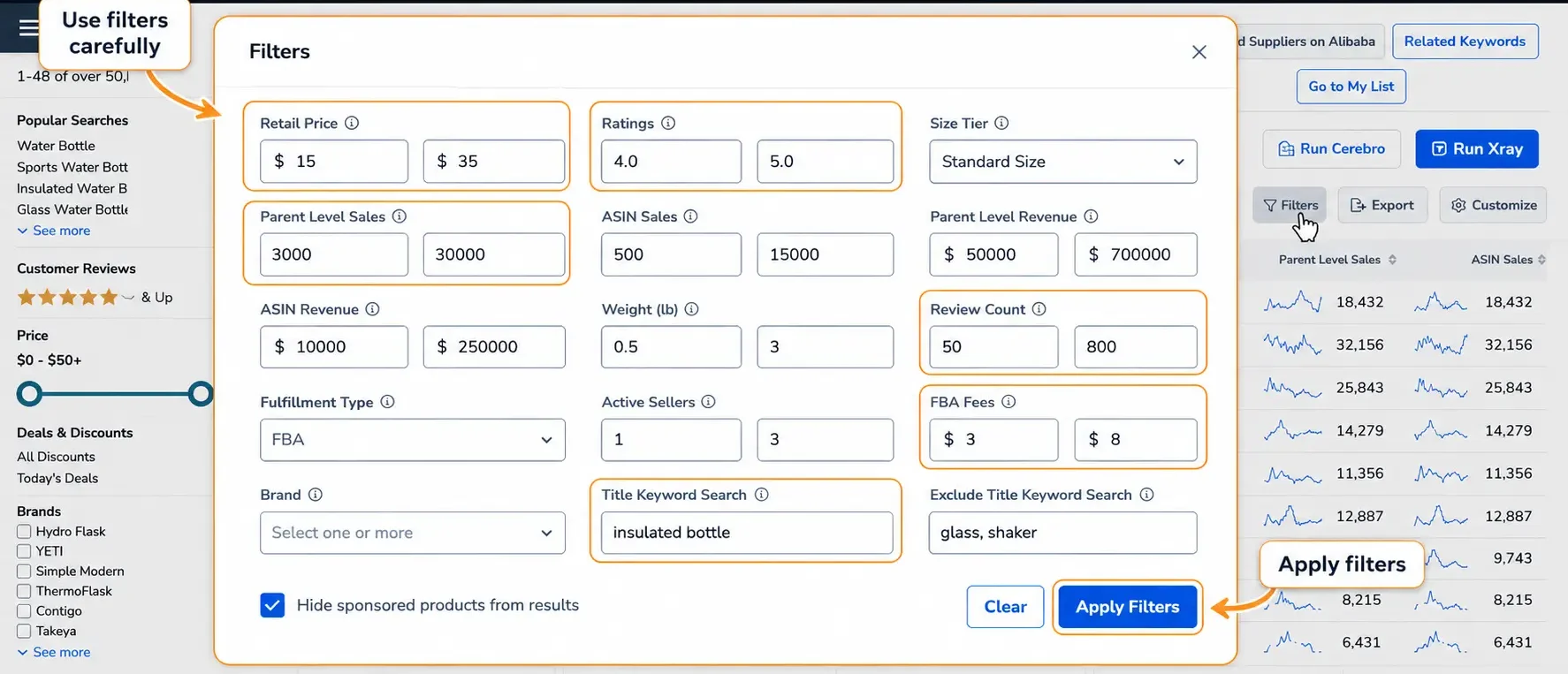
Filters are useful, but be careful. When you filter results, the top-line metrics can change because they are recalculated based on the products that remain after filtering.
That can help you focus on relevant competitors, but it can also create a false sense of opportunity if you keep filtering until only the easiest-looking products remain.
Check Historical Sales, BSR, and Review Trends
A single monthly sales or revenue estimate can be useful, but it does not tell the full story.
Look at historical graphs when available. You want to understand whether demand appears stable, seasonal, rising, or driven by a short-term spike.
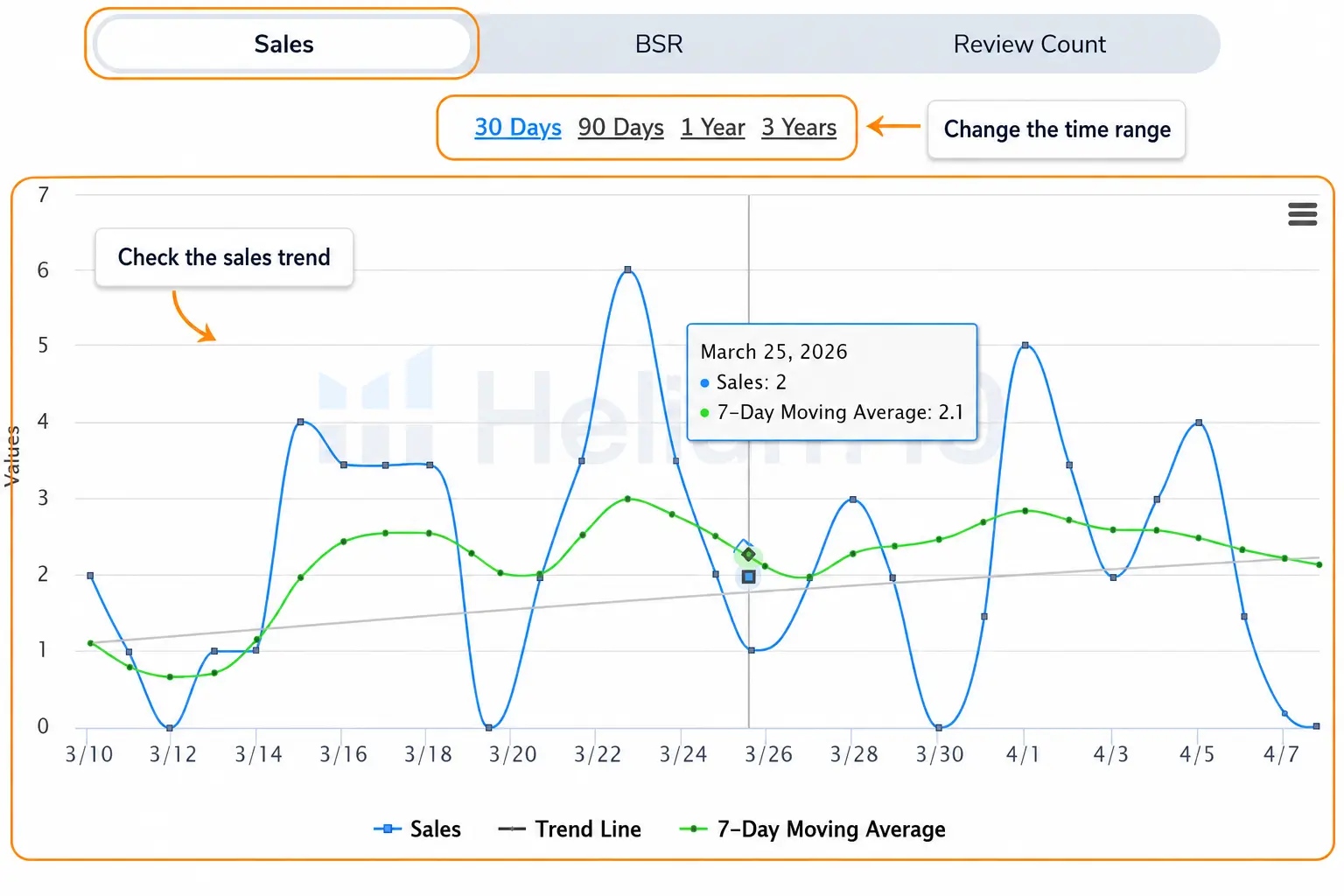
For example, if sales jumped recently but the trend was flat before that, you need to ask why. Was there a seasonal event? A promotion? A temporary ranking change? A product going viral?
Use trends to ask better questions before you add a product to your shortlist.
Important Xray Metrics Beginners Should Understand
Xray gives you a lot of data. The goal is not to memorize every column. The goal is to understand which metrics matter and how beginners often misread them.
For beginners, the most important rule is this: do not treat Xray as a final answer. Treat it as a fast way to collect signals.
How to Read Xray Results Without Choosing Bad Products
Xray can show you a lot of attractive numbers. That is why you need a careful process for reading them.
Do Not Choose a Product From One Number
Do not choose a product because one product has high revenue. Do not choose a product because one metric looks positive. Do not choose a product because a score, badge, or quick indicator looks promising.
Tools can help you screen markets faster, but they cannot know your budget, sourcing ability, launch plan, differentiation strategy, or risk tolerance.
If your version of Xray shows an opportunity indicator, score, check mark, or similar shortcut, treat it as a starting point. Then compare recent purchases, parent-level sales, ASIN sales, price, BSR, reviews, FBA fees, product size, customer complaints, and variation structure.
Watch for Mature Markets
A market can have strong demand and still be difficult for a beginner.
For example, if many top listings have strong estimated revenue but also thousands of reviews, that usually means demand exists, but competitors may be well established.
You are not only asking, “Does this sell?” You are asking, “Can I realistically compete here with my budget, offer, reviews, and differentiation?”
Be Careful With Variation Listings
Variation listings can make Xray data harder to interpret.
A product may have multiple colors, sizes, styles, capacities, or pack counts under the same parent listing. In that case, parent-level sales can make demand look simple even when sales are actually spread across multiple child ASINs.
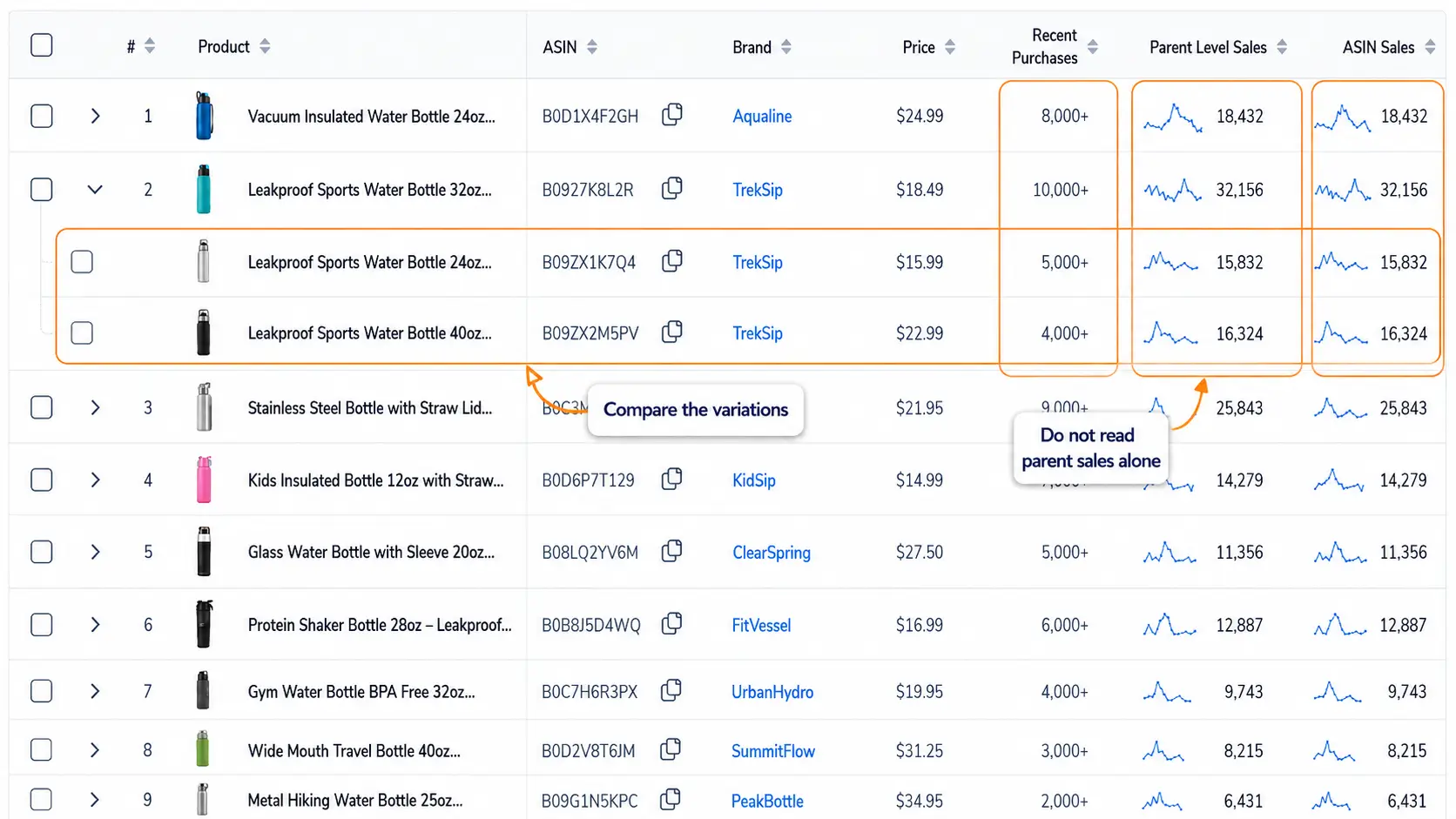
In the example above, one brand has multiple bottle variations under the same product family. If you only look at the parent-level number, you may miss how demand is split between the 24 oz, 32 oz, and 40 oz versions.
That means you should not assume one variation is generating all the demand you see. Open the variation rows when available, compare child ASINs, and check whether the specific version you want to sell has enough demand on its own.
If variation-level data is not available, open the product page, inspect the variations manually, read reviews carefully, and avoid assuming that one variation owns the whole sales estimate.
Use Product Summary to Review One Competitor More Deeply
Amazon search results are useful for comparing a market. Product Summary is better for reviewing one competitor more closely.
After you identify a product worth checking, open its Amazon product page and review the Product Summary view inside the Helium 10 Chrome Extension. This view can bring together revenue, rating, listing health, top keywords, marketplace data, product details, fees, seller count, variations, and trend charts in one place.
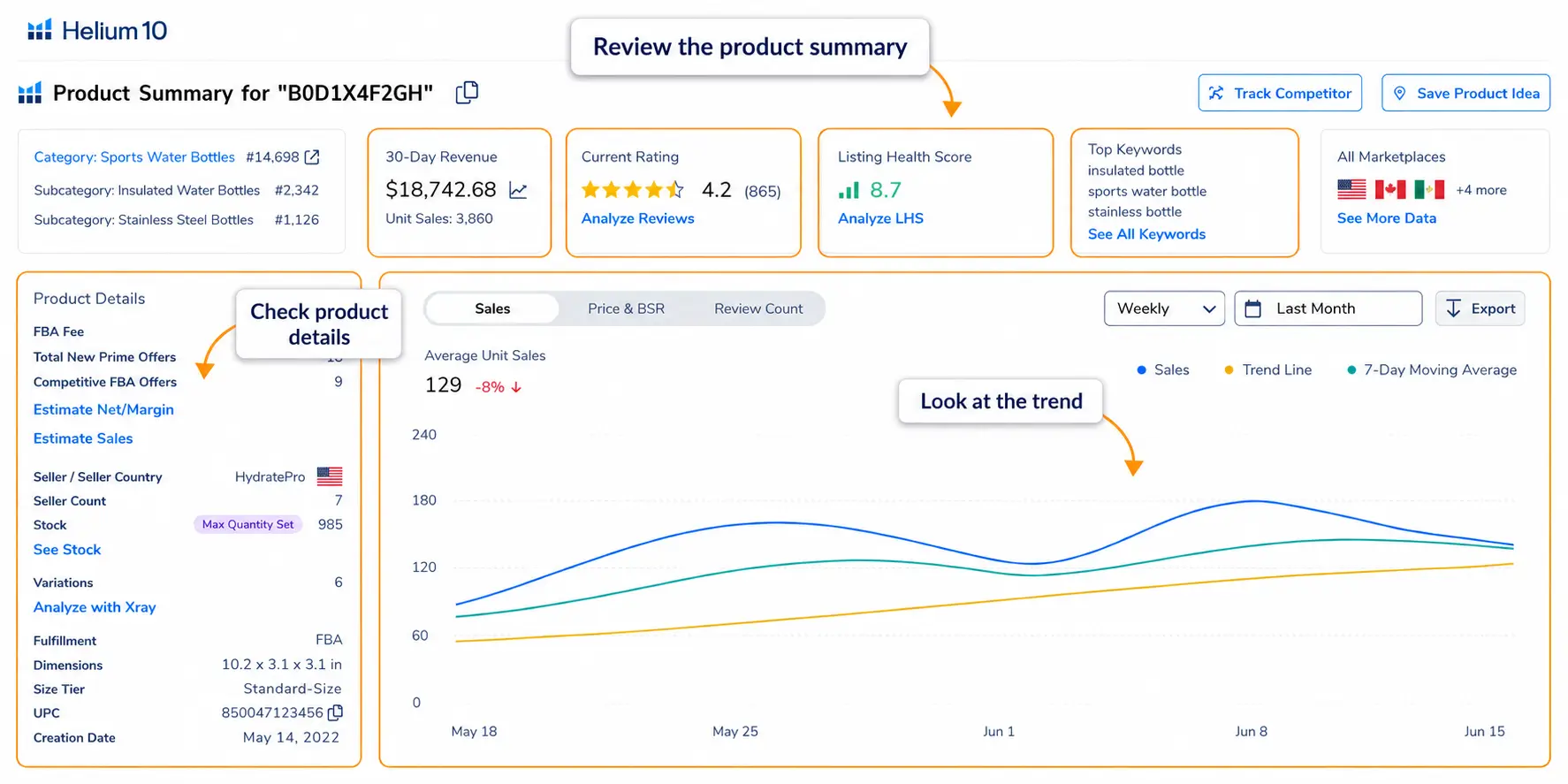
The Listing Health Score can be useful as a quick quality signal, but it should not be used alone. A high score does not automatically mean a product is a good opportunity, and a lower score does not automatically mean the product is easy to beat.
Use Product Summary to ask better questions:
- Is the product generating meaningful revenue?
- Is the rating strong or weak?
- Does the listing look well optimized?
- Are the top keywords relevant to the niche?
- Are there multiple variations?
- Are the fees, size, and weight realistic for your budget?
- Is the sales trend stable, seasonal, or declining?
This is where you move from broad market scanning to deeper competitor analysis. Look at the title, images, bullets, reviews, variations, price, dimensions, rating, and the quality of the offer.
How to Use the Profitability Calculator
Sales and revenue do not equal profit.
After you find a product that looks interesting, use the Profitability Calculator to estimate whether the numbers might work after costs and Amazon fees.
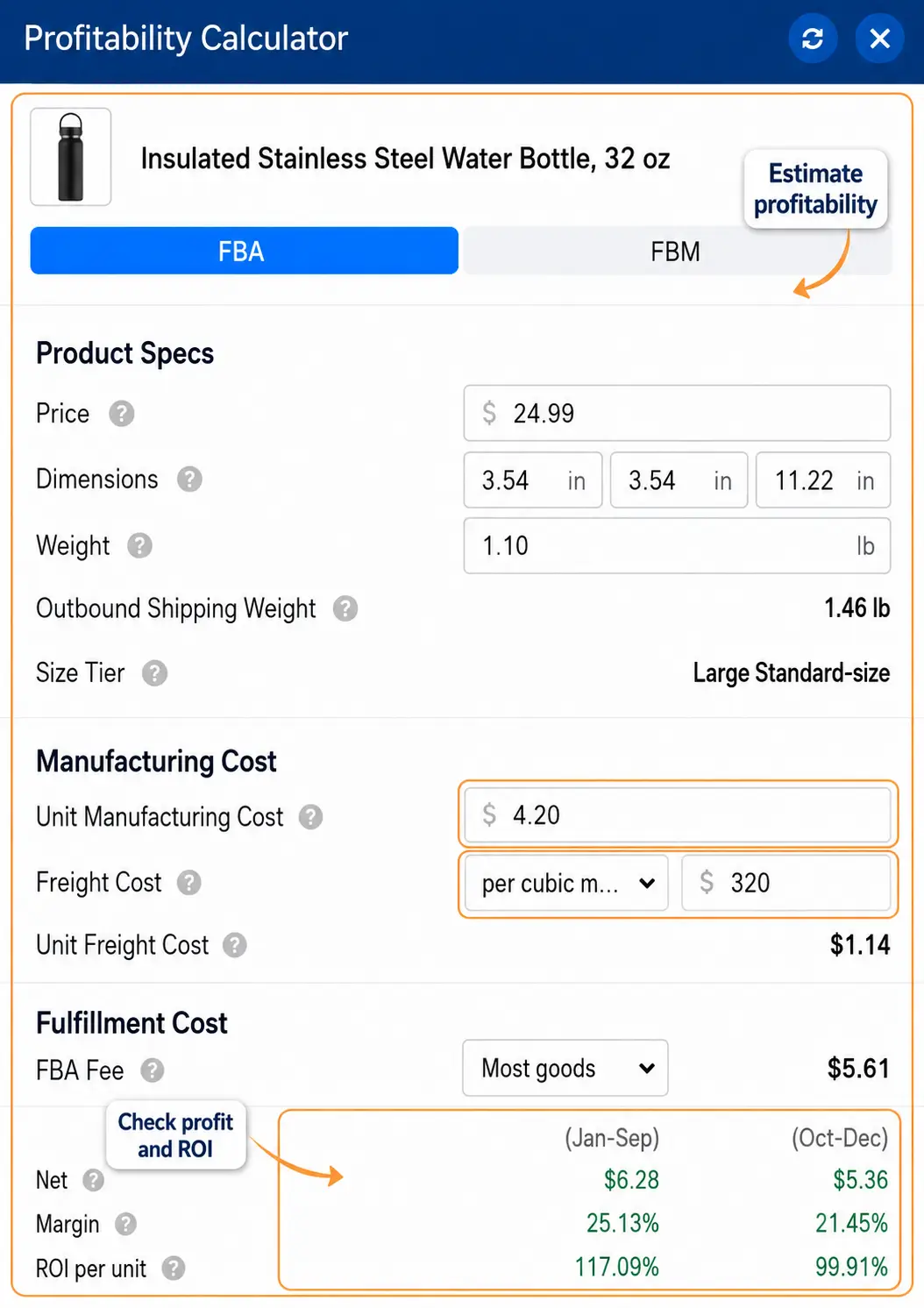
Use it to review inputs such as:
- Product cost
- Freight or shipping cost
- Amazon referral fees
- FBA fees
- Storage-related costs
- Product dimensions and weight
- Net profit
- Margin
- ROI
Do not panic if Xray and the Profitability Calculator show fee numbers differently. Xray may display a fees column that includes basic FBA fees plus referral fees, while the Profitability Calculator may show FBA fees as a specific line item.
For real decisions, combine the calculator with your own landed cost, supplier quote, packaging cost, launch budget, PPC assumptions, and expected selling price.
You can also compare your assumptions with an Amazon FBA cost calculator or review a separate guide to Amazon FBA fees before buying inventory.
How to Use Review Insights to Spot Product Problems
Revenue tells you that people may be buying. Reviews help you understand why people are happy or unhappy after buying.
This is where Review Insights can be useful. Instead of reading hundreds of reviews manually, you can use it to find repeated themes in customer feedback.
Open Review Insights From the Product Page
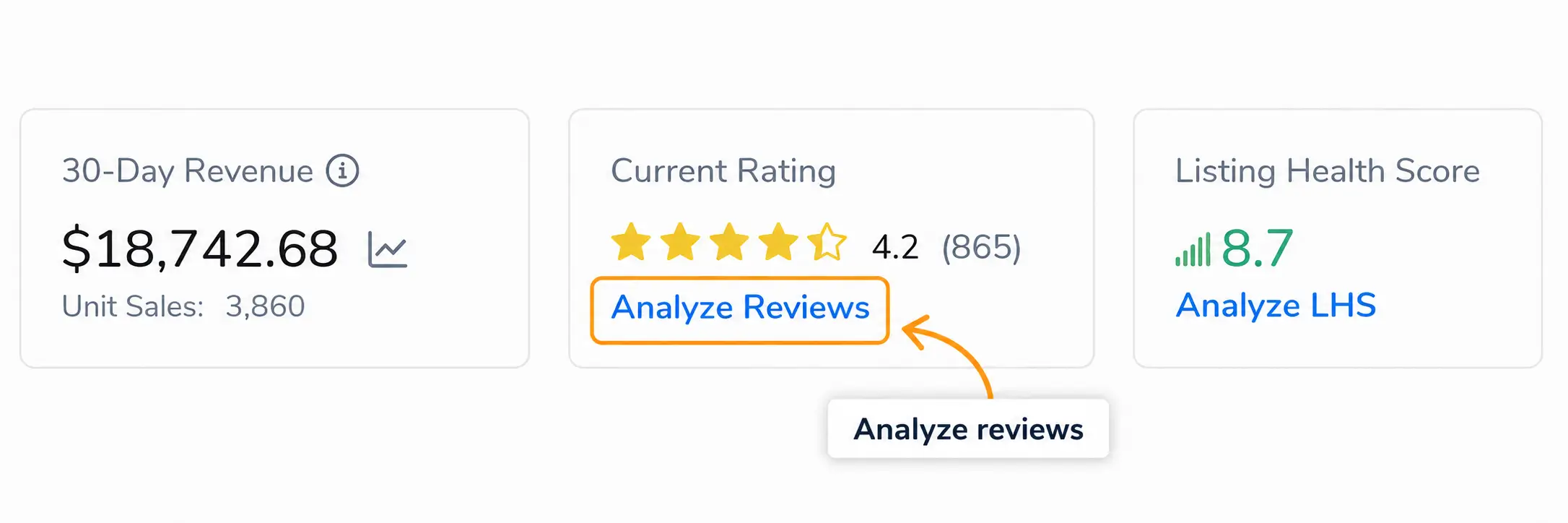
Open an Amazon product page, launch the Helium 10 Chrome Extension, and use the review analysis option from the product summary area when it is available in your account.
Compare What Customers Like and Dislike
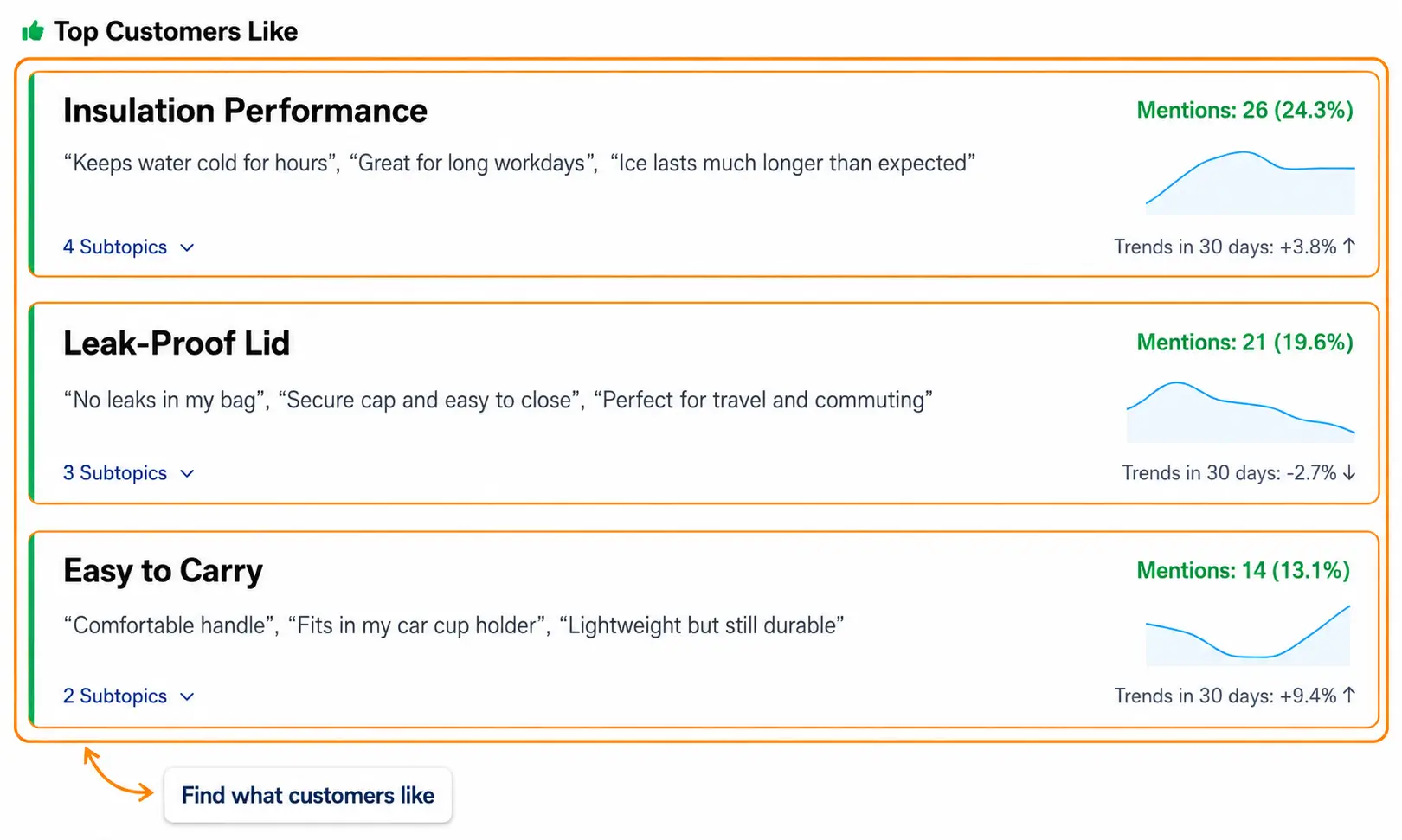
Look for patterns in positive and negative feedback.
Positive topics tell you what customers already value. Negative topics can reveal product improvement opportunities, listing gaps, packaging issues, instruction problems, quality complaints, or confusing expectations.
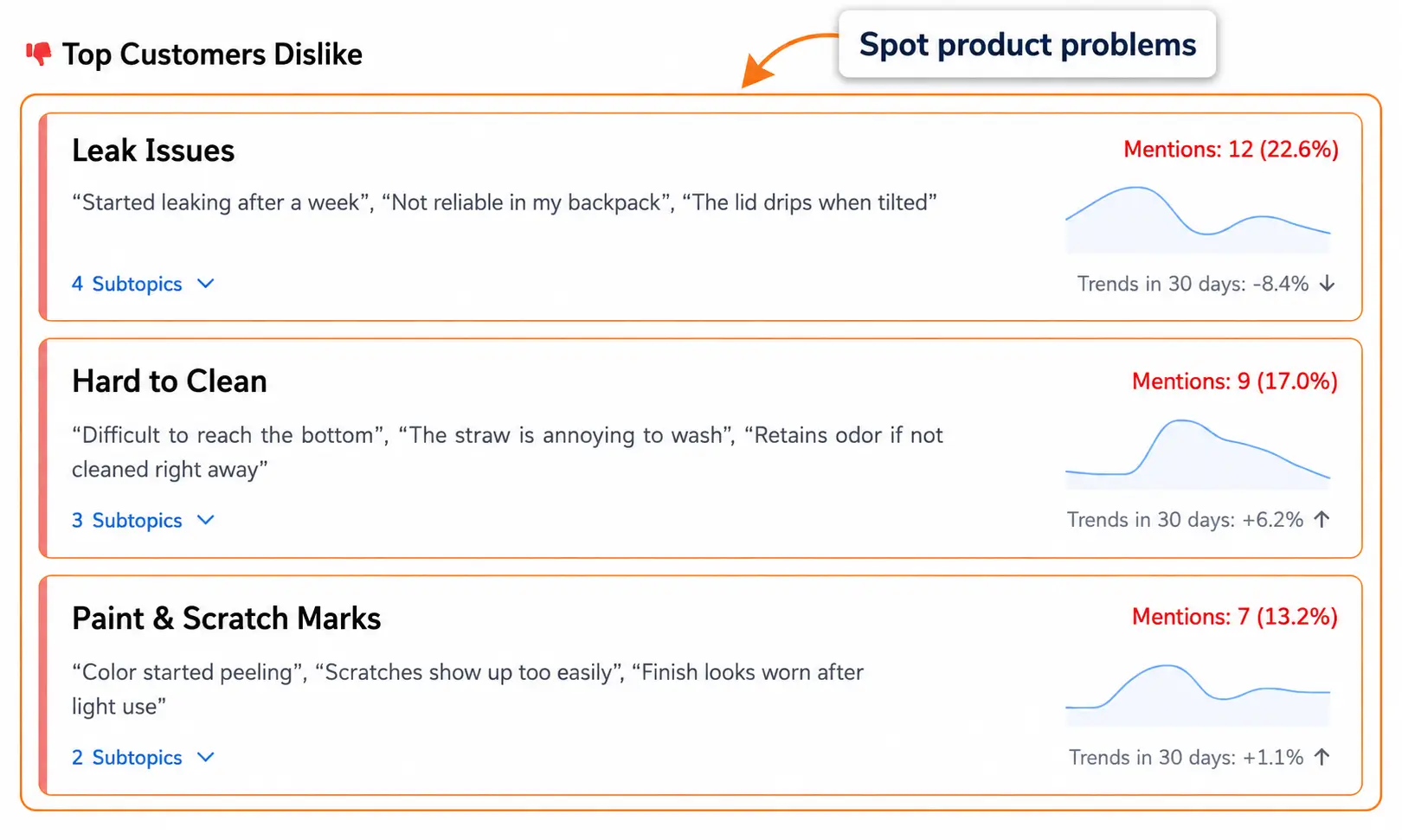
A better product research question is not only, “Does this product sell?”
Ask:
- What do customers repeatedly complain about?
- Are the complaints fixable?
- Are the positive features easy to preserve?
- Are problems getting better or worse over time?
- Do variations have different review patterns?
- Can I improve the product or listing in a meaningful way?
If the reviews reveal serious quality problems and you do not have a realistic way to improve the product, the idea may not be worth shortlisting.
Other Useful Tools Inside the Helium 10 Chrome Extension
You do not need every Chrome Extension tool for your first product research session. Still, a few extra tools can support your workflow once you understand the basics.
Search Expander
Search Expander can help you find related Amazon keyword ideas while typing into the Amazon search bar. This can be useful when you are still exploring how buyers describe a product.
For example, if you search for “insulated bottle,” keyword suggestions may reveal related phrases around size, material, lid type, use case, or audience. Use those ideas to understand the language of the market, not to chase every keyword immediately.
Xray Keywords
Xray Keywords can help you review keyword context for products that are already performing well. It is useful when you want to understand which search terms may be connected to top listings.
This does not replace full keyword research, but it can help you connect product research with listing and PPC research later.
ASIN Grabber
ASIN Grabber can help you collect ASINs from an Amazon page so you can analyze competitors later. This is useful if you want to build a competitor list, run keyword research, or prepare product targeting ideas.
For beginners, the main use is simple: save the most relevant competitor ASINs instead of trying to remember every product you checked.
Inventory Levels
Inventory-related tools can be useful in more advanced research, especially when you want to understand seller behavior, stock pressure, or listing competition. But this should not be your first priority when evaluating a new private label product idea.
Start with demand, competition, profitability, reviews, and variations. Then use inventory data later if it supports your strategy.
Is the Helium 10 Chrome Extension Free to Use?
The Helium 10 Chrome Extension can be installed for free from the Chrome Web Store, but not every tool, limit, or feature may be fully available on every account. Some product research features may depend on your Helium 10 plan, marketplace, usage limits, or account access.
The Helium 10 Chrome Extension can be installed and accessed for free, but not every tool, limit, or feature may be fully available on every account.
Some features may depend on your Helium 10 plan, marketplace, or usage limits. For example, advanced review, keyword, variation, or account-level features may depend on plan access or marketplace support.
So the practical answer is:
Because plans and feature limits can change, check Helium 10’s official pricing page or Chrome Extension documentation before relying on a specific feature for your workflow.
Helium 10 Chrome Extension Not Working: Common Fixes
If the Helium 10 Chrome Extension is not working, do not assume the tool is broken immediately. Browser extensions can be affected by Chrome updates, Amazon page changes, permissions, login issues, cookies, and conflicts with other extensions.
Try these basic fixes:
- Make sure you are using desktop Google Chrome.
- Update the Helium 10 Chrome Extension.
- Update your Chrome browser.
- Make sure you are logged in to the correct Helium 10 account.
- If you are a subuser, switch to the account profile that has the right permissions.
- Check Chrome permissions and cookie settings.
- Clear cookies or cache if needed.
- Disable other Chrome extensions temporarily to check for conflicts.
- Contact Helium 10 support if the issue continues.
Also remember: mobile Chrome is not the normal place to install and use Chrome extensions. Use desktop Chrome when doing product research with the extension.
If the issue continues after updating Chrome, refreshing the Amazon page, and checking your Helium 10 login, visit the official Helium 10 Chrome Extension Help Center for current support articles.
What to Do After You Find a Product Idea With the Chrome Extension
After you run Xray, check Product Summary, review customer feedback, and estimate profitability, do not jump straight to buying inventory.
Put the product idea into one of three buckets:
This is where product research becomes a decision process, not just a tool session.
You can also compare the opportunity with other research sources, such as Amazon Product Opportunity Explorer, or step back and review broader product idea methods in how to find products to sell on Amazon.
Common Mistakes When Using the Helium 10 Chrome Extension
FAQ
What is the Helium 10 Chrome Extension?
The Helium 10 Chrome Extension is a browser extension that adds product research tools to Amazon pages. It helps sellers analyze search results, product pages, estimated demand, revenue, reviews, BSR, fees, profitability, and customer feedback.
How do I use the Helium 10 Chrome Extension for Amazon product research?
Search for a product idea on Amazon, open the extension, run Xray, review competitor data, check trends, open product pages, estimate profitability, read reviews, and decide whether to reject, research more, or shortlist the idea.
Is the Helium 10 Chrome Extension free?
The extension can be installed and accessed for free, but some tools, limits, and advanced features may depend on your Helium 10 plan, account access, or marketplace.
What is Helium 10 Xray?
Xray is a product research tool inside the Helium 10 Chrome Extension. It helps analyze Amazon search results and product pages using estimated demand, revenue, reviews, BSR, FBA fees, sellers, recent purchases, parent-level sales, ASIN sales, and other product data.
What does Xray show on Amazon search results?
Xray can show metrics such as recent purchases, parent-level sales, ASIN sales, estimated revenue, price, BSR, reviews, ratings, FBA fees, sellers, fulfillment method, product size, and historical sales or review trends.
Why does Xray show N/A for sales?
N/A usually means the data is not available or not reliable enough for that product or column. This can happen because the category is not supported, the product does not have a main-category BSR, or the ASIN does not meet the tool’s criteria for inclusion.
Why are FBA fees different in Xray and the Profitability Calculator?
Xray and the Profitability Calculator may display fees differently. Xray’s fees column may include basic FBA fees plus referral fees, while the Profitability Calculator may show FBA fees as a separate line item.
Can I use the Helium 10 Chrome Extension on mobile?
You should use the Helium 10 Chrome Extension on desktop Google Chrome. Mobile Chrome does not provide the normal Chrome extension experience used for this workflow.
Does the Chrome Extension help find winning products?
It can help you analyze product opportunities, but it does not guarantee winning products. Use it to validate signals, compare competitors, check customer feedback, and estimate profitability before making a decision.
What should I do after finding a product with Xray?
Do not buy inventory immediately. Open competitor pages, check reviews, review variations, estimate profitability, compare demand trends, and decide whether to reject the idea, research more, or add it to a shortlist.
Final Thoughts
The Helium 10 Chrome Extension can make Amazon product research faster, but it should not make the decision for you.
Use Xray to understand the market. Use filters to clean the data. Use trends to avoid one-number decisions. Use Product Summary to inspect competitors. Use the Profitability Calculator to check whether the numbers can work. Use Review Insights to understand customer pain points. And be careful with variation listings, missing data, and estimated metrics.
The best use of the Chrome Extension is not to find a product instantly. It is to help you decide which ideas deserve deeper research.
If you are still building your full research process, use tools like Black Box, Xray, Product Opportunity Explorer, and profitability calculators together instead of relying on one tool alone.
